
One of the most important steps in a designer's job is presenting the project to the client. And when it comes to presenting a logo to a client, using professional mockups makes all the difference between an instant approval and an endless round of revisions. Learn how to do it the right way.
Why use a mockup when presenting a logo?
Presenting just the logo on a white background doesn't let the client picture how the brand will look in practice. With mockups, you show the logo applied to t-shirts, business cards, storefronts, packaging, mugs, and more - creating visual impact and emotion.
This significantly increases project approval rates and demonstrates the real value of your work as a designer.
Which mockups should you use for a logo presentation?
The choice of mockups should match the client's business. Here are the most recommended ones:
1. T-Shirt Mockup
Works for any type of business - from gyms to restaurants. Showing the logo on a uniform t-shirt gets the client excited about the result.
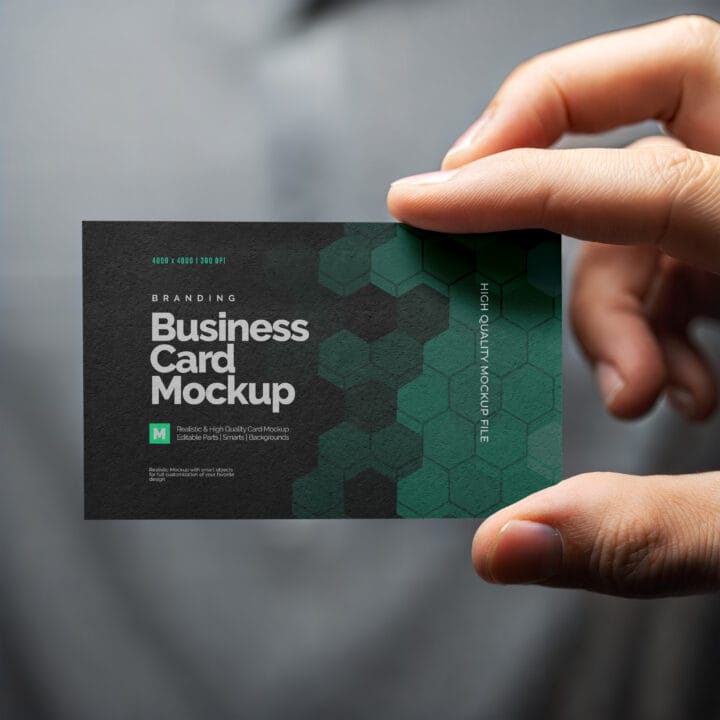
 2. Business Card Mockup
Essential for any brand identity presentation. The business card is an item every client immediately understands and values.
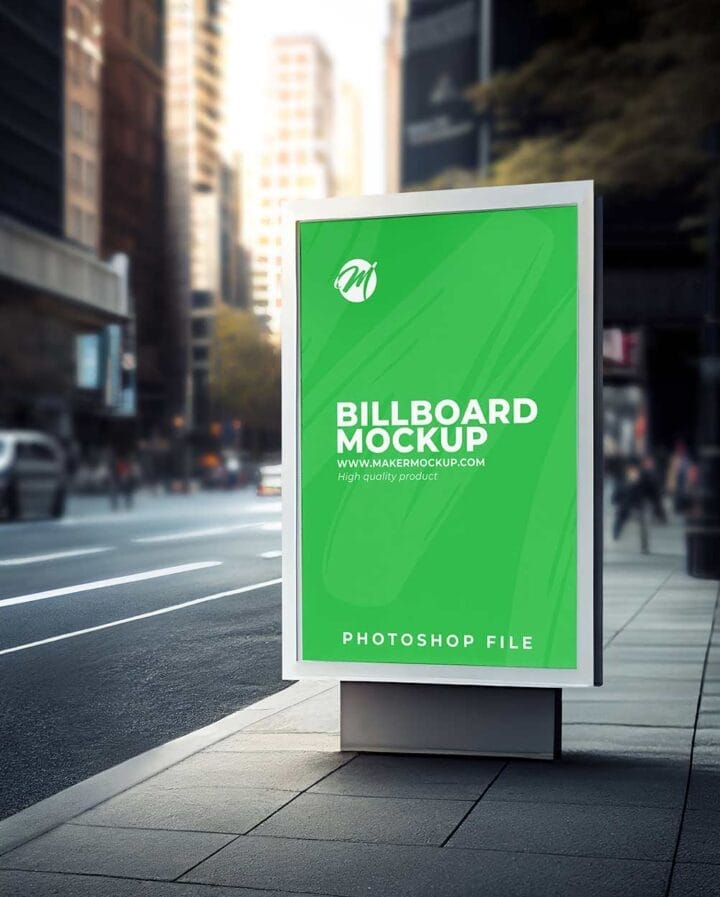
 3. Storefront or Sign Mockup
For brick-and-mortar businesses like shops, restaurants, and offices, showing the logo on a storefront is extremely impactful and helps the client picture themselves as the owner of the business.
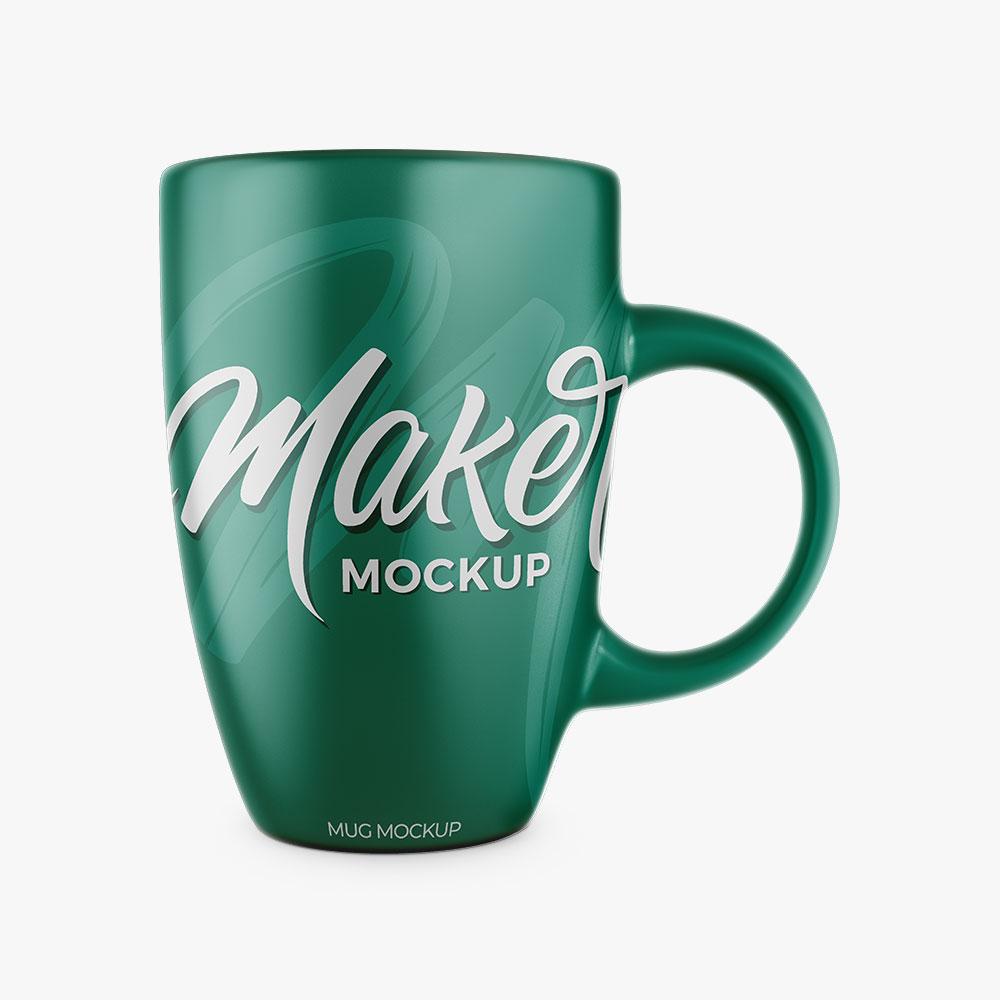
4. Mug Mockup
A classic for branding presentations. Simple to edit and very visual - every client loves seeing the logo on a personalized mug.
5. Cap Mockup

Widely used to present logos for sports, fashion, and lifestyle brands. It brings energy and a modern feel to the presentation.
Step by step: how to build a logo presentation with mockups
1. Choose between 4 and 8 different mockups
Variety is key. Use mockups from different categories (apparel, stationery, environment) to show the logo in several contexts.
2. Apply the logo to every mockup via Smart Object
Open each PSD file in Photoshop, find the Smart Object, apply the logo, and export the image in high resolution.
3. Put together a PDF or PowerPoint presentation
Bring all the mockups together in an organized document. Add the client's name, the date, and the logo's color variations. A well-structured PDF conveys far more professionalism than sending loose images over WhatsApp.
4. Present with context
During the presentation, briefly explain the color, typography, and concept choices behind the logo. This shows technical expertise and increases the perceived value of your work.
Mistakes you should avoid
- Using low-quality mockups that hurt the image of your work
- Applying the logo distorted or without proper spacing on the mockup
- Using mockups that have nothing to do with the client's business
- Sending files that are too heavy and slow to open
- Presenting without context - always explain the concept behind your choices
Take your presentations to the next level
Using professional mockups in a logo presentation isn't a luxury - it's a strategy. Designers who invest in presentation quality charge more, close more projects, and build a solid reputation in the market.
Visit Maker Mockup and find the best PSD mockups to take your logo presentations to another level. Your next approval could be just one mockup away!